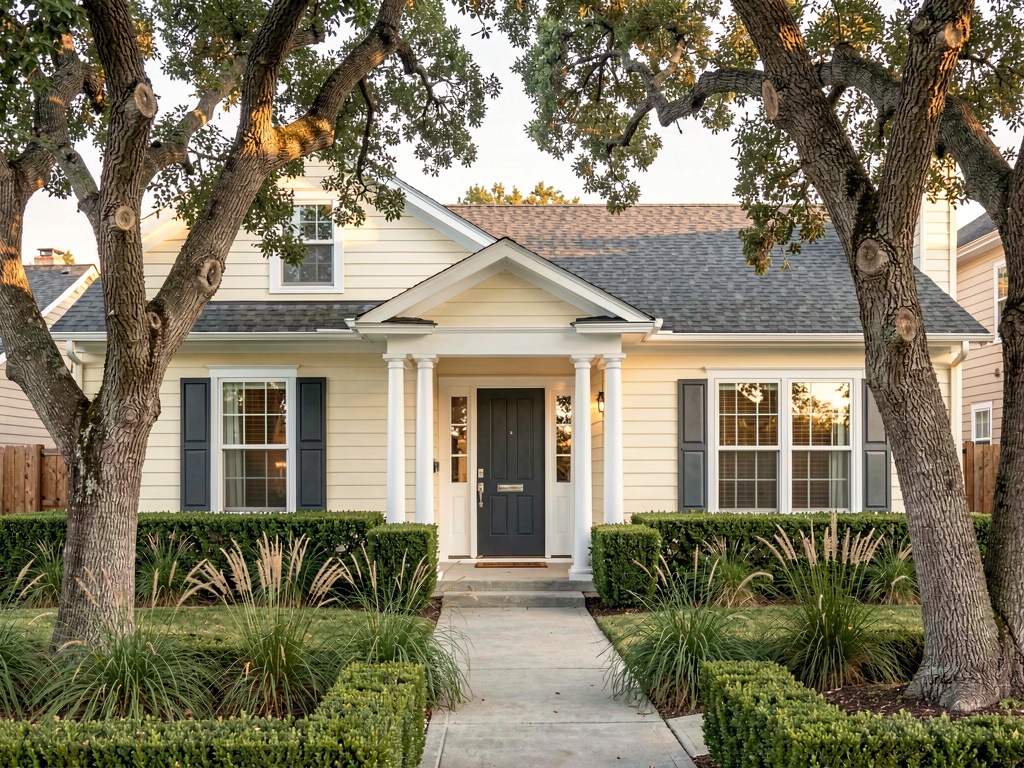
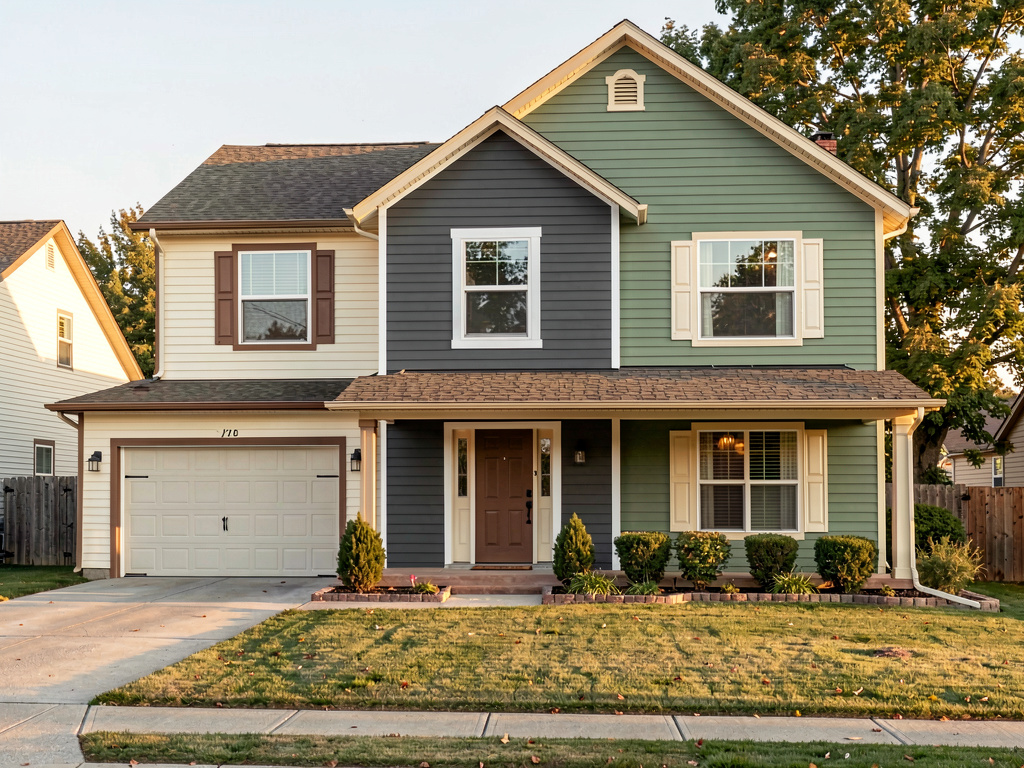
AI Paint Visualizer: See Exactly How Any Color Will Look on Your Walls Before You Buy
Stop wasting money on paint samples that don't match your vision. An AI paint visualizer lets you see any color on your actual walls in seconds — no mess, no guesswork.

Ryan H.
Founder of Remodel AI · March 20, 2026 · 9 min read
You picked the perfect color. Bought the sample pot. Painted a patch on the wall. Waited for it to dry. Stepped back.
And it looked nothing like what you imagined.
So you bought another sample. Painted another patch. Waited again. Still not right. Meanwhile, your living room wall now has six uneven rectangles in shades ranging from "warm linen" to "definitely beige" and you're no closer to making a decision.
Sound familiar? This is the paint color trap that millions of homeowners fall into every year. Sample pots cost $8 each, test patches take a day to dry, and the tiny chip at the paint store never translates to an entire room. Lighting changes throughout the day. Undertones shift against your flooring. Colors that looked cozy on a chip look clinical at scale.
An AI paint visualizer skips all of that. You take a photo of your room, pick a color, and see it on your actual walls in seconds.
What is an AI paint visualizer?
An AI paint visualizer uses machine learning to digitally apply paint colors to walls in a photograph of a real room. Unlike basic color overlay filters, it understands the geometry of your space — it identifies the walls, accounts for shadows and light, and applies color in a way that looks realistic rather than flat.
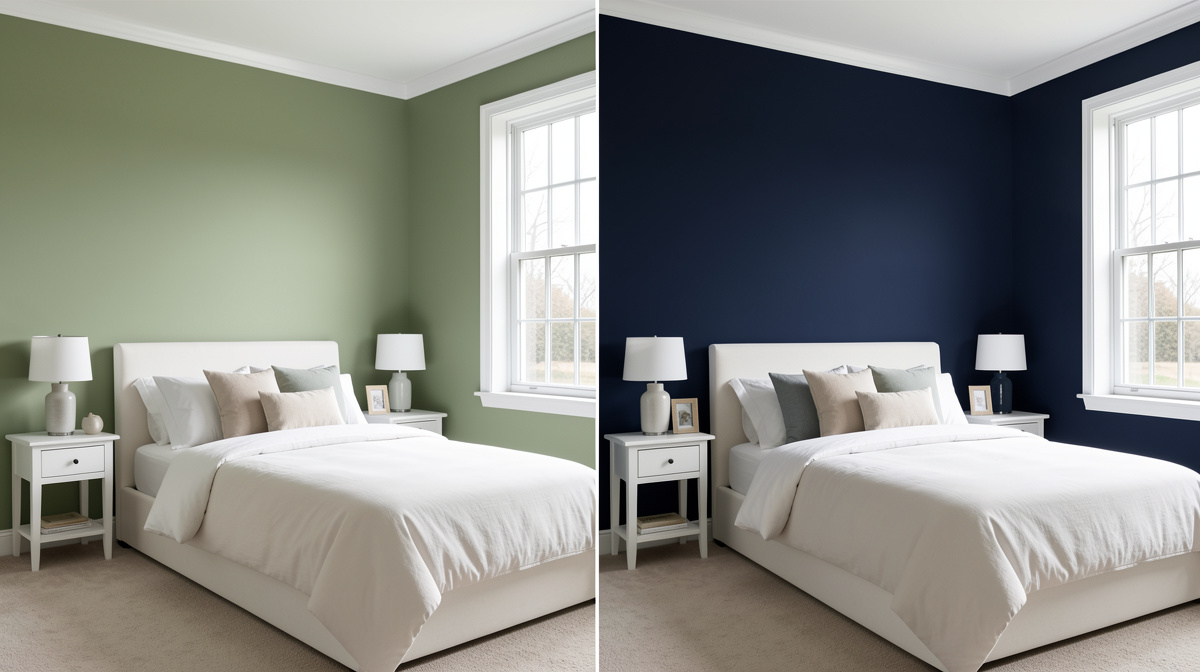
You get a before-and-after preview that shows you how a specific color will actually feel in your room, under your lighting conditions, with your furniture and flooring already in frame.
This is different from the "virtual painting" tools that paint companies have offered for years. Those older tools used basic color overlays on generic room templates. Modern AI paint visualizers work on photos of your own home, recognize wall surfaces automatically, and produce results realistic enough to actually make a decision from.
How it works
The technology is complex but using it isn't:
1. Upload a photo of your room Take a photo of the space you want to repaint — your living room, bedroom, kitchen, hallway, wherever. Natural daylight produces the most accurate results (more on that below). The photo should be in focus and capture the walls you want to visualize.
2. Select the wall or surface The AI identifies the paintable surfaces in your image. You select which wall or walls you want to change. Some tools let you isolate individual walls, which is useful when you want to test an accent wall concept.
3. Choose a color Enter a specific paint color — either by hex code, by brand name and color number (Benjamin Moore, Sherwin-Williams, Behr, etc.), or by browsing a palette. You can try as many colors as you want.
4. See the result The AI generates a realistic visualization showing your room with the new color applied. You can compare it side by side with the original to evaluate the difference. If you don't like it, swap the color and try again — instantly, for free.
The whole process takes under a minute. Compare that to buying a sample pot ($5–$10 each), painting a test patch, waiting for it to dry, evaluating it across different times of day, then potentially doing it all over again.
How to use Remodel AI as your AI paint visualizer
Remodel AI includes a dedicated Wall Paint tool that lets you visualize any color on your actual walls. Here's how:
Step 1 — Get the app or open the web tool
Remodel AI is available on iOS, Android, and on the web at www.remodelai.io/app. You get 3 free designs when you sign up — no credit card required.
Step 2 — Select the Wall Paint tool
From the home screen, choose the Wall Paint tool. It's separate from the other design tools.
Step 3 — Upload your room photo
Take or upload a photo of the room you want to repaint. The AI works best with photos taken in daylight, with the camera roughly level and the walls clearly visible. Avoid very dark or heavily shadowed images if possible.
Step 4 — Specify your color
Enter the paint color you want to visualize. You can type a color name, use a hex code, or describe the color you are looking for. Remodel AI supports colors from major paint brands, so you can look up the exact color number before you buy.
Step 5 — Generate and compare
Hit generate. The tool produces a realistic result showing your room with the new wall color. You can generate multiple variations to compare different shades — warm white versus cool white, sage green versus olive, etc. — without buying a single sample pot.
Step 6 — Save and share
Download your favorite results. Share them with your partner, designer, or contractor. Take the screenshot to the paint store as a reference. The visualization works as a conversation piece — share it with your partner, a painter, or take the screenshot to the paint store.
Beyond Wall Paint, Remodel AI has 7 other design tools: interior redesign across 30+ styles, exterior design, virtual staging, floor replacement, object removal, furniture swap, and landscape design.
Paint colors people are actually choosing in 2026
See Your Room Redesigned
Download Remodel AI and transform any room in 30 seconds. 3 free designs, no signup.


If you're not sure where to start, here are the colors showing up most right now. Test any of them against your actual room with the AI paint visualizer before committing.
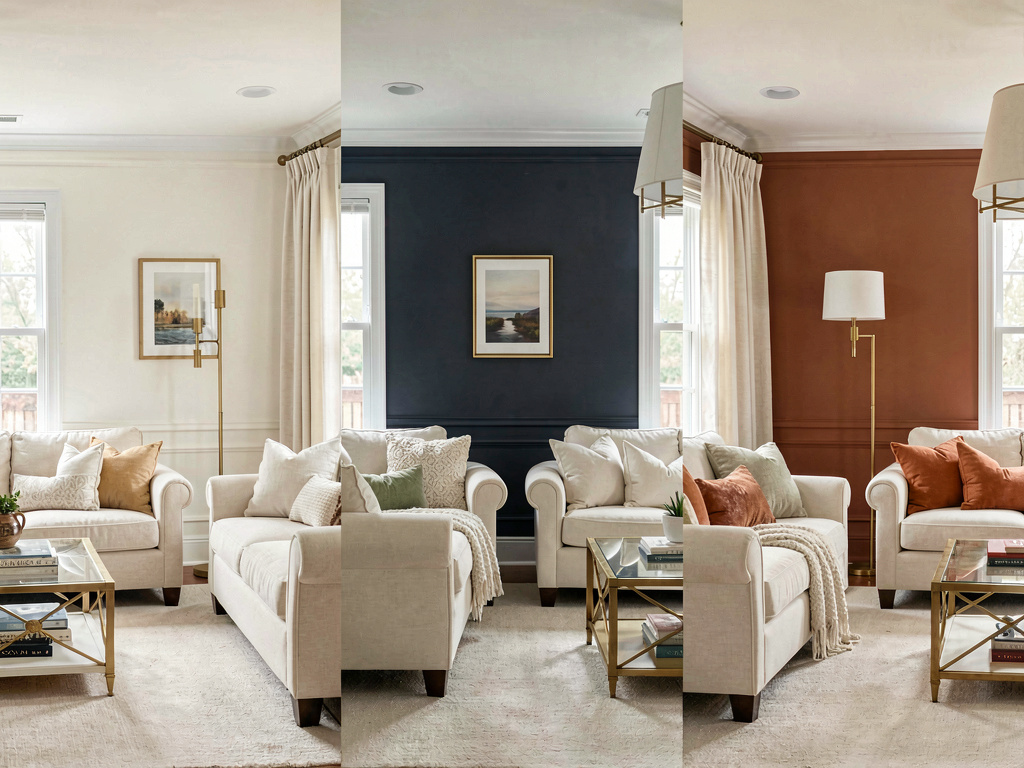
Warm Whites Cool, blue-toned whites have dominated for years. In 2026, warm whites with creamy, ivory, or slightly yellow undertones are taking over. They make rooms feel welcoming without reading as yellow. Colors like Benjamin Moore's White Dove or Sherwin-Williams' Alabaster are worth testing. The difference between a warm white and a cool white looks subtle on a chip — but at room scale it's a completely different feeling. That's exactly the kind of thing the AI paint visualizer catches.
Sage Green Sage has had staying power because it works across so many contexts. It is neutral enough for living rooms and bedrooms, interesting enough to feel intentional, and pairs well with wood tones, linen, and muted brass hardware. Lighter sages read as almost neutral; deeper sages make a bolder statement on an accent wall.
Navy Blue Deep navy continues to be the go-to for accent walls, home offices, and powder rooms. It creates a sense of depth and sophistication. If you're nervous about committing to navy in your space, the AI paint visualizer lets you check whether it works with your existing flooring and furniture before you buy a gallon.
Terracotta and Warm Earthy Tones Terracotta, rust, clay, and ochre are appearing in rooms where people want warmth and texture. These tones work particularly well in dining rooms, entryways, and spaces with natural materials. They can be polarizing — what looks beautiful in an inspiration photo can feel overwhelming in your own room. Worth testing on your actual walls before you commit.
Soft Mocha and Warm Taupe Following the influence of Pantone's 2025 color of the year (Mocha Mousse), warm taupes and soft browns are landing as sophisticated neutrals that replace the cooler grays that dominated the previous decade.
Dusty Blue and Steel Blue For a cooler alternative to navy, dusty and steel blues offer a muted, sophisticated take that works in bedrooms and bathrooms particularly well.
AI paint visualizer vs. traditional paint samples
| Traditional Samples | AI Paint Visualizer | |
|---|---|---|
| Cost | $5–$15 per sample | Free (3 designs) or $29–$49/mo |
| Time to result | 1–2 days (dry time) | Under 1 minute |
| Colors you can test | Limited by budget | Unlimited |
| Accuracy | Varies with lighting, patch size | Photorealistic, full wall |
| Mess | Yes — painting required | None |
| Shareable | Photograph the patch | Download and share instantly |
The main limitation: screen color and physical paint are never a perfect match. Monitor calibration, screen brightness, and room lighting all affect how a digital visualization looks versus the painted wall. This is why the best approach is to use the AI visualization to narrow your choices down to one or two finalists, then buy a sample of just those colors to confirm. You go from testing six samples to testing one.
Tips for more accurate results
Photograph in daylight Natural light is the most accurate light for evaluating paint colors. Take your room photo during the day with natural light coming through the windows. Avoid photos taken under warm incandescent bulbs or cool LED lights — these shift the perceived color of your walls and affect how the AI visualization renders the new color.
Avoid overexposed or underexposed photos If the photo is blown out (too bright) or very dark, the AI has less accurate information about the wall surface and shadows. A well-exposed, clear photo produces the most realistic result.
Include the whole wall Visualizing a full wall rather than a corner or close-up gives you a much better sense of how the color will feel in the space. Include adjacent surfaces — flooring, trim, furniture — so you can evaluate the color in context.
Test the same color at different times of day Once you have narrowed down to a finalist color, take photos of your room at different times of day — morning, afternoon, evening with artificial light — and run the visualization on each. Paint colors shift significantly with changing light, and seeing that shift before you commit is valuable.
Compare warm and cool versions of the same hue Most colors come in warmer and cooler variants. If you are drawn to a gray, test both a warm gray and a cool gray. The difference in feel can be surprising, and the AI paint visualizer makes this comparison free and instant.
Frequently asked questions
Is an AI paint visualizer accurate enough to replace paint samples entirely?
For most people, the AI visualization is accurate enough to eliminate 80–90% of the trial and error from the paint selection process. You can confidently rule out colors that don't work and narrow your shortlist significantly. For the final decision, buying one physical sample of your top choice is still a good idea, since screen color and physical paint can differ slightly based on your monitor and lighting.
Can I use any photo, or does it need to be a specific type?
Any clear, in-focus photo of your room works. The best results come from photos taken in natural daylight with the walls clearly visible and the image well-exposed. Very dark photos, heavily filtered photos, or images with strong color casts from artificial lighting will produce less accurate results.
Does Remodel AI support specific paint brand colors?
Yes. Remodel AI's Wall Paint tool supports colors from major paint brands. You can specify a color by name and brand, or by hex code, giving you results that directly correspond to colors available at the paint store.
What if I want to visualize more than just wall paint?
Remodel AI has a full set of design tools beyond wall paint: interior redesign across 30+ styles, exterior design, virtual staging for real estate, floor replacement, object removal, furniture swap, and landscape design. All on the same platform.
How much does Remodel AI cost?
You get 3 free designs when you sign up — enough to test the tool and see results on your actual room. After that, Pro is $29/month and Premium is $49/month. Both plans give you access to all tools including the paint visualizer, interior redesign, and everything else.
Skip the sample pots
Paint is one of the cheapest ways to change how a room feels. The problem has never been the paint itself — it's the process of choosing. Buying samples, painting patches, waiting for dry time, still not being sure.
The AI paint visualizer cuts that loop short. Upload a photo of your room, pick a color, see it on your walls. Test ten colors in the time it used to take to open one sample pot.
Remodel AI's Wall Paint tool is available right now — on iOS, Android, and the web. Your first 3 designs are free.
Ready to Try AI Interior Design?
Upload a photo and redesign any room in seconds. 3 free designs, no signup required.